Bluetooth technology makes life easier. You can connect wireless headphones, keyboards, mice, speakers, and smartphones without messy cables. However, many users experience frustrating issues when trying to connect devices. If you are wondering how to fix Bluetooth not connecting on Windows 10, you are not alone.
Sometimes Bluetooth disappears completely. Other times, devices pair but refuse to connect. In some cases, audio cuts out or devices disconnect randomly. The good news is that most Bluetooth problems on Windows 10 can be solved with simple troubleshooting methods.
This guide explains practical solutions that work for beginners and advanced users alike. By following these steps carefully, you can restore your Bluetooth connection and avoid future issues.
Table of Contents
Why Bluetooth Problems Happen on Windows 10
Bluetooth issues can happen for several reasons. Understanding the root cause helps you choose the right solution faster.
Common Causes of Bluetooth Connection Issues
Some of the most common causes include:
- Outdated Bluetooth drivers
- Corrupted system files
- Disabled Bluetooth services
- Windows update conflicts
- Interference from nearby devices
- Incorrect pairing settings
- Power management restrictions
In many situations, a small software glitch is enough to stop Bluetooth from working correctly.
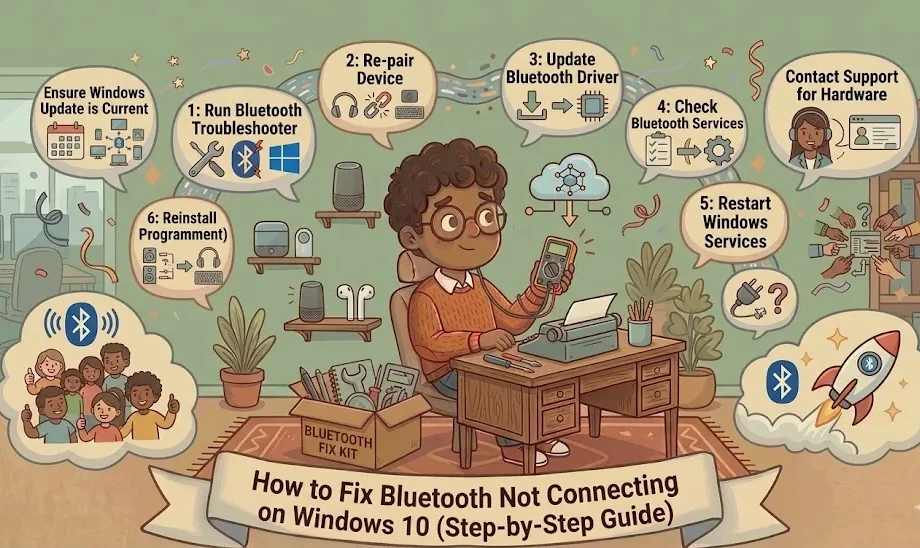
Signs Your Bluetooth Is Not Working Properly
You may notice symptoms such as:
- Bluetooth option missing from settings
- Devices failing to pair
- Frequent disconnections
- Audio lag in wireless headphones
- Mouse or keyboard delays
- “Driver unavailable” error messages
Once you identify the symptoms, troubleshooting becomes much easier.
Check If Bluetooth Is Enabled
Before trying advanced fixes, confirm that Bluetooth is actually turned on.
Turn Bluetooth On from Settings
Follow these steps:
- Open Settings
- Click Devices
- Select Bluetooth & other devices
- Turn the Bluetooth switch ON
If the switch is missing, your driver may be corrupted or disabled.
You can also use the keyboard shortcut on laptops that include a wireless toggle key.
Use Airplane Mode Correctly
Airplane mode disables wireless communication, including Bluetooth.
To check:
- Open Action Center
- Look for Airplane Mode
- Make sure it is OFF
Sometimes users accidentally activate airplane mode without realizing it.
Restart Your Computer and Bluetooth Device
It sounds simple, but restarting often solves temporary connection bugs.
Why Restarting Works
Restarting clears temporary cache files and refreshes wireless services. It also resets Bluetooth communication between devices.
When Bluetooth stops responding unexpectedly, a reboot is frequently the quickest solution.
Best Restart Practices
For the best results:
- Turn off your Bluetooth device
- Restart your PC
- Wait 30 seconds
- Turn the Bluetooth device back on
- Attempt pairing again
This method helps refresh both devices completely.
Run the Windows Bluetooth Troubleshooter
Windows 10 includes a built-in troubleshooter that can automatically detect and repair Bluetooth problems.
Steps to Open the Troubleshooter
Follow these instructions:
- Open Settings
- Click Update & Security
- Select Troubleshoot
- Click Additional troubleshooters
- Choose Bluetooth
- Run the troubleshooter
The tool will scan for problems and recommend fixes.
What the Troubleshooter Can Fix
The troubleshooter may repair:
- Disabled Bluetooth adapters
- Incorrect settings
- Missing services
- Driver configuration issues
While it does not solve every problem, it is an excellent starting point.
For official Microsoft troubleshooting guidance, visit Microsoft Support
Update Bluetooth Drivers
Outdated drivers are one of the leading reasons Bluetooth stops working.
Update Drivers Through Device Manager
To update your drivers:
- Right-click the Start Menu
- Open Device Manager
- Expand Bluetooth
- Right-click your Bluetooth adapter
- Select Update driver
- Choose Search automatically for drivers
Windows will search for newer versions online.
Download Drivers from Manufacturer Websites
Sometimes Windows cannot find the newest driver. In that case, visit the official website of your laptop or motherboard manufacturer.
Popular manufacturers include:
Downloading drivers directly from the manufacturer often resolves stubborn Bluetooth problems.
Reinstall Bluetooth Drivers
If updating does not work, reinstalling the driver may help.
Remove the Existing Driver
Here is how:
- Open Device Manager
- Expand Bluetooth
- Right-click the adapter
- Select Uninstall device
- Restart your computer
Windows usually reinstalls the driver automatically after rebooting.
Reinstall the Correct Driver
If Windows fails to reinstall the driver:
- Download the correct version manually
- Install it from the manufacturer’s website
- Restart your PC again
This process removes corrupted files that may be causing the issue.
Check Bluetooth Services
Bluetooth depends on several background services to function correctly.
Enable Bluetooth Support Service
To check services:
- Press Windows + R
- Type
services.msc - Find Bluetooth Support Service
- Double-click it
- Set Startup Type to Automatic
- Click Start
This service must remain active for Bluetooth to work properly.
Restart Related Services
You should also restart:
- Bluetooth Audio Gateway Service
- Bluetooth User Support Service
- Remote Procedure Call (RPC)
Restarting these services refreshes communication between Windows and connected devices.
Remove and Reconnect the Device
Sometimes pairing information becomes corrupted.
Forget the Bluetooth Device
To remove a device:
- Open Settings
- Click Bluetooth & other devices
- Select the problematic device
- Click Remove device
This deletes saved connection data.
Pair the Device Again
After removing it:
- Turn the device off and on
- Put it into pairing mode
- Add it again from Windows settings
Fresh pairing often solves detection problems immediately.
Fix Bluetooth Audio Problems
Bluetooth audio devices may connect but still produce poor sound or no sound at all.
Set the Correct Audio Device
Windows may select the wrong playback device.
To fix this:
- Right-click the sound icon
- Choose Open Sound settings
- Under Output, select your Bluetooth headphones or speaker
This ensures audio is routed correctly.
Improve Bluetooth Sound Quality
For better sound quality:
- Keep devices close together
- Avoid wireless interference
- Disconnect unused Bluetooth devices
- Update audio drivers regularly
Walls and electronic interference can weaken Bluetooth signals significantly.
Check for Windows Updates
System updates often include important bug fixes.
Why Updates Matter
Microsoft regularly patches Bluetooth compatibility problems. Running outdated Windows builds can create connection issues.
To update Windows:
- Open Settings
- Click Update & Security
- Select Windows Update
- Click Check for updates
Install all recommended updates.
Install Optional Driver Updates
Optional updates may include:
- Bluetooth driver fixes
- Wireless adapter improvements
- Compatibility patches
These updates can improve overall device stability.
Reset Network and Bluetooth Settings
If nothing else works, resetting your settings may help.
When to Use a Network Reset
Use this method when:
- Bluetooth disappears entirely
- Multiple wireless features fail
- Drivers appear corrupted
A reset restores default networking configurations.
Backup Tips Before Resetting
Before resetting:
- Save Wi-Fi passwords
- Note VPN settings
- Backup important configurations
After resetting, reconnect your devices manually.
Advanced Fixes for Persistent Bluetooth Problems
Some stubborn problems require advanced troubleshooting.
Use System Restore
If Bluetooth stopped working after a recent update:
- Search for System Restore
- Choose a restore point
- Restore your system
This rolls Windows back to a previous working state.
Check Hardware Issues
Hardware problems are also possible.
Common hardware causes include:
- Faulty Bluetooth adapters
- Damaged USB ports
- Internal wireless card failures
Testing an external USB Bluetooth adapter can help identify hardware faults.
Prevent Future Bluetooth Connection Problems
Once your Bluetooth works again, maintaining it is important.
Keep Drivers Updated
Driver updates improve:
- Stability
- Security
- Device compatibility
- Performance
Check for updates every few months.
Maintain Stable Wireless Connections
To reduce future issues:
- Keep devices charged
- Avoid overcrowded wireless environments
- Remove unused paired devices
- Restart your PC regularly
Simple maintenance habits can prevent many common Bluetooth problems.
Frequently Asked Questions
Why is my Bluetooth paired but not connected on Windows 10?
This usually happens because of outdated drivers, incorrect audio settings, or corrupted pairing data. Removing and reconnecting the device often fixes the problem.
How do I reinstall Bluetooth on Windows 10?
You can reinstall Bluetooth by uninstalling the Bluetooth adapter from Device Manager and restarting your computer. Windows will usually reinstall the driver automatically.
Why did Bluetooth disappear from Windows 10?
Bluetooth may disappear due to driver corruption, disabled services, Windows update conflicts, or hardware issues.
Can Windows updates break Bluetooth?
Yes, occasionally a Windows update may introduce compatibility problems. Installing newer updates or rolling back problematic updates can help.
How do I know if my Bluetooth hardware is damaged?
If Bluetooth still fails after reinstalling drivers and resetting settings, the adapter may be faulty. Testing with an external USB Bluetooth adapter can confirm this.
What is the fastest way to fix Bluetooth not connecting on Windows 10?
The fastest solutions are:
- Restart your PC
- Restart the Bluetooth device
- Run the troubleshooter
- Update drivers
- Re-pair the device
These steps solve most Bluetooth problems quickly.
Conclusion
Learning how to fix Bluetooth not connecting on Windows 10 does not have to be difficult. Most Bluetooth problems come from outdated drivers, incorrect settings, or temporary software glitches. Fortunately, Windows provides several built-in tools that make troubleshooting much easier.
Start with basic fixes such as restarting your computer and checking Bluetooth settings. Then move toward advanced solutions like reinstalling drivers or resetting network settings if needed.
By following the methods in this guide, you can restore stable Bluetooth connectivity and enjoy smooth wireless performance again.
Whether you use wireless headphones, gaming controllers, keyboards, or speakers, maintaining updated drivers and proper system settings will help prevent future issues.
If you have a problem of How to Fix Slow WiFi on Android ?