Learning how to create Gmail account in computer is one of the first essential skills for anyone using the internet. A Gmail account gives you access to email communication, online services, cloud storage, video meetings, and many other tools provided by Google.
Whether you’re a student, professional, business owner, or casual internet user, having a Gmail account makes online activities much easier. Fortunately, creating a Gmail account on a computer only takes a few minutes.
In this complete guide, you’ll learn exactly how to create Gmail account in computer step-by-step, including security tips, customization options, troubleshooting methods, and best practices for managing your account effectively.
Table of Contents
Why You Need a Gmail Account
A Gmail account is more than just an email address. It connects you to many useful Google services.
Benefits of Gmail
| Feature | Benefit |
|---|---|
| Gmail | Send and receive emails |
| Google Drive | Store files online |
| Google Docs | Create documents |
| YouTube | Access subscriptions and comments |
| Google Meet | Video conferencing |
| Google Photos | Backup photos automatically |
Millions of users rely on Gmail daily because it’s simple, reliable, and free.
Requirements Before Creating a Gmail Account
Before starting, make sure you have:
- A computer with internet access
- A web browser like Chrome or Firefox
- A phone number for verification
- A secure password idea
- Basic personal information
Having these ready makes the signup process faster.
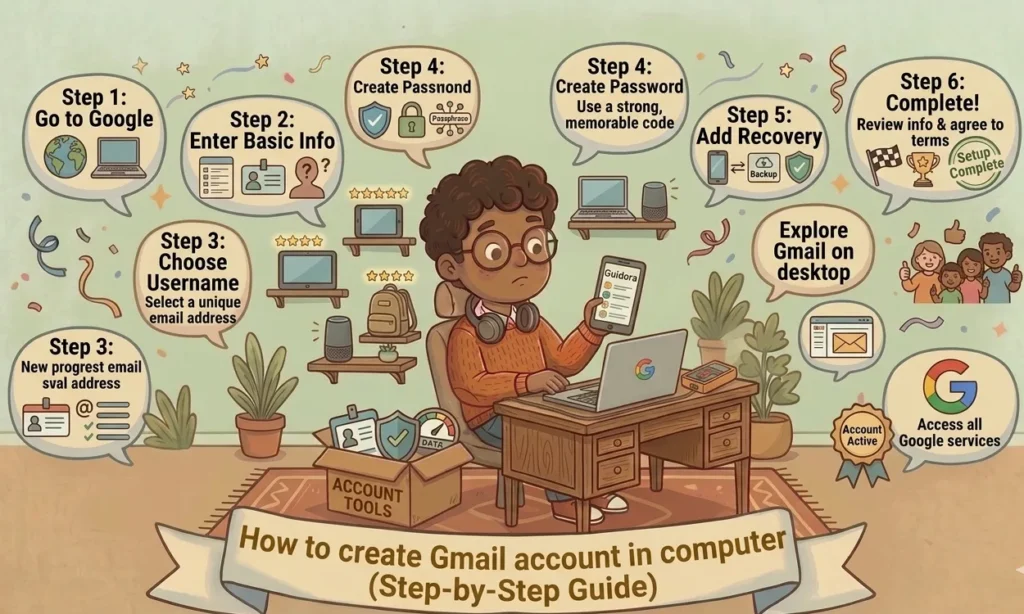
How to Create Gmail Account in Computer Step-by-Step
Now let’s go through the complete account creation process.
Open the Gmail Signup Page
First, open your web browser and visit:
You’ll see the Gmail signup form.
Enter Personal Information
Google will ask for:
- First name
- Last name
Use your real information whenever possible, especially for professional or business accounts.
Example:
| Field | Example |
|---|---|
| First Name | John |
| Last Name | Smith |
Then click Next.
Choose a Username
Your username becomes your Gmail address.
Example:
johnsmith@gmail.comTips for choosing a good username:
- Keep it simple
- Avoid confusing numbers
- Use your real name if possible
- Make it easy to remember
If your preferred name is unavailable, Google may suggest alternatives.
Create a Strong Password
A strong password improves account security significantly.
Good Password Tips
Your password should include:
- Uppercase letters
- Lowercase letters
- Numbers
- Symbols
Example:
MySecurePass2026!Avoid:
- Birthdates
- Simple words
- Reused passwords
Strong passwords protect your Gmail account from hackers.
Add Phone Number Verification
Google may ask for a phone number to verify your identity.
Steps:
- Enter your phone number
- Receive a verification code
- Type the code into the form
Phone verification improves account security and recovery options.
Add Recovery Information
Google may also ask for:
- Recovery email
- Birthday
- Gender
Recovery information helps you regain access if you forget your password later.
Accept Google’s Terms and Privacy Policy
Read the terms carefully, then click:
- I Agree
- Accept
Your Gmail account will now be created successfully.
Important Gmail Security Tips
Creating an account is only the beginning. Security is extremely important.
Enable Two-Factor Authentication
Two-factor authentication adds extra protection.
After entering your password, Google sends a verification code to your phone.
Benefits include:
- Better account security
- Protection from hacking
- Safer access on public networks
You can enable this feature from your Google account settings.
Add a Recovery Email
Recovery emails help restore access if you lose your password.
Use:
- A secondary Gmail account
- Another trusted email provider
Never skip recovery options if possible.
Customize Your Gmail Account
Gmail allows many personalization options.
Change Gmail Theme
You can customize Gmail’s appearance.
Steps:
- Open Gmail
- Click the gear icon
- Select See all settings
- Choose Themes
You can add:
- Dark mode
- Nature backgrounds
- Color themes
Customization improves user experience.
Organize Inbox with Labels
Labels help organize emails efficiently.
Examples:
- Work
- School
- Family
- Important
- Receipts
Labels reduce inbox clutter and improve productivity.
Common Problems While Creating Gmail Accounts
Sometimes users face issues during signup.
Username Already Taken
This is extremely common.
Solutions:
- Add numbers
- Use initials
- Include keywords
- Try different variations
Example:
johnsmith2026@gmail.comPhone Verification Errors
Possible causes include:
- Weak internet connection
- Incorrect phone number
- Too many verification attempts
Try again after a few minutes if the problem continues.
Browser Compatibility Issues
Older browsers may not work properly.
Recommended browsers include:
Keeping browsers updated improves performance and security.
Gmail Features You Should Know
Gmail offers many helpful features beyond sending emails.
Smart Compose
Smart Compose predicts sentences while typing to save time.
Spam Protection
Gmail automatically filters suspicious emails into the spam folder.
Email Scheduling
You can schedule emails to send later.
This is useful for:
- Business communication
- International time zones
- Reminders
Google Drive Integration
Attach large files directly from Google Drive.
This avoids email attachment limits.
How to Use Gmail Professionally
Professional email habits matter.
Use a Professional Email Address
Good example:
john.smith@gmail.comAvoid usernames like:
coolgamer123@gmail.comProfessional addresses improve credibility.
Write Clear Subject Lines
Examples:
- Project Update
- Meeting Request
- Invoice Attached
Clear subject lines improve communication.
Keep Emails Organized
Archive old emails regularly.
Use:
- Labels
- Filters
- Search functions
Organized inboxes save time.
Best Practices for Managing Emails
Managing emails efficiently prevents inbox overload.
Check Email at Scheduled Times
Constant checking reduces productivity.
Instead:
- Check morning emails
- Review midday messages
- Respond in batches
Unsubscribe from Unnecessary Emails
Marketing emails can clutter your inbox quickly.
Remove subscriptions you no longer need.
Use Filters and Rules
Filters automatically organize incoming emails.
Examples:
| Filter Type | Action |
|---|---|
| Newsletters | Move to Promotions |
| Work emails | Mark as Important |
| Receipts | Archive automatically |
Automation improves inbox management.
Advantages of Gmail Compared to Other Email Services
Gmail remains one of the most popular email services worldwide.
Key Advantages
| Gmail Feature | Benefit |
|---|---|
| Large storage | More email space |
| Powerful search | Find emails quickly |
| Mobile synchronization | Access anywhere |
| Security protection | Reduced hacking risks |
| Google ecosystem | Easy integration |
These features make Gmail highly convenient for personal and professional use.
FAQs
Is Gmail free to use?
Yes. Gmail is completely free for personal users.
Can I create multiple Gmail accounts?
Yes. Google allows users to create multiple accounts.
Do I need a phone number to create Gmail?
Usually yes, especially for security verification purposes.
How long does it take to create a Gmail account?
Most users can create an account in less than 10 minutes.
Can I change my Gmail username later?
No. Gmail usernames generally cannot be changed after creation.
Is Gmail safe for professional use?
Yes. Gmail provides strong security and professional features.
What should I do if I forget my Gmail password?
Use the Google account recovery process with your phone number or recovery email.
Conclusion
Learning how to create Gmail account in computer is simple, fast, and incredibly useful in today’s digital world. A Gmail account gives you access to powerful communication tools, cloud storage, productivity apps, and many other Google services.
By following the steps in this guide, you can create a secure Gmail account confidently while avoiding common mistakes. Don’t forget to use strong passwords, enable two-factor authentication, and organize your inbox for the best experience.
Once your account is ready, you’ll have a reliable email platform for personal, educational, and professional use.
For more content about Internet & digital Guides , you can visit this directory.