How to fix a black screen on Windows 11 quickly with 11 proven solutions. Learn easy troubleshooting steps, startup fixes, driver updates, and recovery methods.
You press the power button, Windows starts loading — and then nothing. Just a black screen. No desktop, no taskbar, sometimes not even a cursor.
A black screen on Windows 11 is one of the most common — and most frustrating — PC problems. The good news: in the vast majority of cases, you can fix it yourself in under 20 minutes without any technical background.
In this guide, we’ll walk you through 9 proven fixes, starting with the simplest 10-second tricks and moving step by step to the more advanced solutions. Work your way down the list and stop as soon as your screen comes back.
Quick fix if you have a cursor: Press Ctrl + Shift + Esc → right-click Windows Explorer → Restart. This restores the desktop in seconds for many users.
Table of Contents
What Causes a Black Screen on Windows 11?
Before jumping into fixes, it helps to understand why this happens. The black screen is not a single bug — it’s a symptom with several possible causes:
- Corrupted or outdated display drivers — the most common cause
- A faulty Windows Update — especially cumulative updates (KB5079473, KB5083769 have been widely reported in 2026)
- A crashed Windows Explorer shell — the desktop simply failed to load
- Loose or damaged display cable (HDMI / DisplayPort)
- Conflicting external peripherals — USB hubs, docking stations, external drives
- System file corruption — damaged Windows files preventing the GUI from loading
- Hardware failure — failing GPU, monitor, or RAM (rare but possible)
Knowing when the black screen appears tells you a lot. If it happens before the login screen, it’s usually a driver or hardware issue. If it appears after login, it’s almost always the Windows Explorer shell or a display driver crash. Let’s fix it.
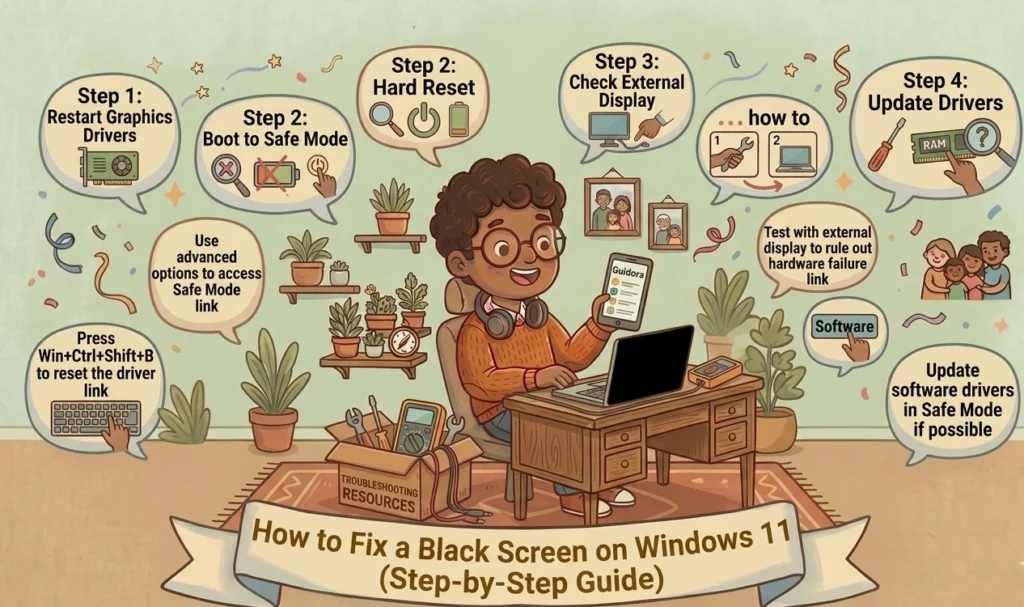
Fix 1 — Try These Keyboard Shortcuts First (10 Seconds)
Before doing anything else, try these shortcuts. They work even when your screen is completely black, because Windows is still running in the background.
Reset the graphics driver
Press Win + Ctrl + Shift + B
Your screen will flicker for a second and come back. This resets the graphics driver without restarting the PC. It’s the fastest fix and works for many users with random black screen issues.
Open the security screen
Press Ctrl + Alt + Del
If a menu appears, Windows is still running and the problem is just with the display shell. Click Task Manager from there and proceed to Fix 4 below.
Switch display mode
Press Win + P, then press P again, then Enter. This cycles through display modes (PC Screen Only → Duplicate → Extend). If Windows was trying to project to a disconnected second monitor, this will bring your main display back.
Fix 2 — Force Restart Your PC
If the shortcuts above didn’t work, a force restart is the next step.
- Hold the power button for 5 seconds until the PC turns off completely.
- Wait 10 seconds.
- Press the power button again to turn it back on.
If the black screen was caused by a temporary glitch or a frozen process, a restart will clear it. If it comes back, move on to the next fix.
Fix 3 — Check Your Display Cables and Monitor
This sounds obvious, but a loose HDMI or DisplayPort cable is responsible for more black screens than you’d expect — especially after moving your PC or plugging in new devices.
- Turn off your PC.
- Unplug the display cable (HDMI or DisplayPort) from both ends — the monitor and the PC.
- Plug it back in firmly on both sides.
- Turn the PC back on.
Also try these:
- If your PC has both a dedicated GPU (graphics card) and an integrated GPU (on the motherboard), make sure your cable is plugged into the dedicated GPU’s port, not the motherboard’s.
- Try a different cable if you have one.
- Try connecting a different monitor to rule out a faulty display.
Fix 4 — Disconnect External Peripherals
External devices — USB hubs, docking stations, external hard drives, even certain keyboards — can conflict with Windows 11 and cause a black screen on startup.
- Turn off your PC.
- Unplug everything except your keyboard, mouse, and monitor.
- Restart and see if the screen comes back.
- If it does, plug your devices back in one at a time, restarting each time, until you find the one causing the issue.
Once you identify the problem device, check the manufacturer’s website for an updated driver or firmware.
Fix 5 — Restart Windows Explorer
If you can see your mouse cursor on a black background but have no desktop or taskbar, your Windows Explorer shell has crashed. This is an easy fix.
- Press Ctrl + Shift + Esc to open Task Manager.
- If you see a simplified view, click More details.
- Scroll down and find Windows Explorer in the list.
- Right-click it and select Restart.
Your desktop and taskbar should reappear within a few seconds. If Windows Explorer is not in the list, click File → Run new task, type explorer.exe, and press Enter.
If this keeps happening after every restart, your display driver is likely the real culprit — see Fix 6.
Fix 6 — Update or Roll Back Your Display Driver (Most Common Fix)
An outdated or corrupted graphics driver is the number one cause of black screens on Windows 11. Here’s how to fix it from Safe Mode.
Step 1: Boot into Safe Mode
- Hold the power button to force-shutdown your PC.
- Press the power button to turn it on, then force-shutdown again when you see the Windows logo.
- Repeat this 3 times. On the third restart, Windows will enter Automatic Repair / WinRE.
- Click Advanced options → Startup Settings → Restart.
- Press 4 or F4 to boot into Safe Mode.
Step 2: Update or roll back the driver
- Right-click the Start button → Device Manager.
- Expand Display adapters.
- Right-click your GPU (e.g., NVIDIA GeForce, AMD Radeon, Intel UHD Graphics).
- Select Update driver → Search automatically for drivers.
- If the problem started after a recent driver update, choose Properties → Driver tab → Roll Back Driver instead.
Restart normally after updating or rolling back.
For NVIDIA users, you can also download the latest driver directly from NVIDIA’s official driver page. For AMD users, visit the AMD support page.
Already know your way around driver issues? You might also find our guide on how to fix laptop overheating useful, as GPU overheating can also trigger black screens.
Fix 7 — Uninstall a Recent Windows Update
If your black screen started right after Windows Update ran, a bad cumulative update is likely the cause. In 2026, the most reported culprits have been KB5079473, KB5083769, and KB5082417.
Here’s how to uninstall it from Safe Mode (boot into Safe Mode using the steps in Fix 6 above):
- Open Settings → Windows Update → Update History.
- Click Uninstall Updates.
- Find the most recently installed update (sorted by date).
- Click it and select Uninstall.
- Restart your PC.
After your PC restarts normally, go to Windows Update settings and pause updates temporarily while Microsoft issues a fix.
Fix 8 — Run SFC and DISM to Repair System Files
Corrupted Windows system files can prevent the desktop from loading, causing a persistent black screen. The built-in SFC (System File Checker) and DISM tools scan and repair them automatically.
- Boot into Safe Mode (see Fix 6).
- Click Start, search for cmd, right-click Command Prompt, and select Run as administrator.
- Type the following and press Enter:
sfc /scannowWait for the scan to complete (it takes 5–15 minutes). If it reports corrupted files, run this command next:
DISM /Online /Cleanup-Image /RestoreHealthThis downloads a fresh copy of corrupted system files from Microsoft’s servers. Restart your PC when it finishes.
Fix 9 — Perform a System Restore
If none of the above fixes worked, rolling Windows back to an earlier point — before the black screen started — is your next best option. This does not delete your personal files.
- Boot into Safe Mode (Fix 6) or WinRE Advanced Options.
- Search for Create a restore point and open it.
- Click System Restore → Next.
- Choose a restore point from a date before the black screen started.
- Click Next → Finish and confirm.
Your PC will restart and restore Windows to that earlier state. This takes about 10–20 minutes.
If you don’t have any restore points, or System Restore doesn’t fix it, a Windows 11 Reset (Settings → System → Recovery → Reset this PC → Keep my files) is the last software option before professional hardware diagnosis.
When It’s a Hardware Problem
If you’ve tried all 9 fixes above and your PC still shows a black screen — even in Safe Mode — the problem is likely hardware, not software. Possible culprits include:
- A failing or overheating GPU
- Faulty or failing RAM — run Windows Memory Diagnostic to test
- A damaged display cable inside a laptop
- A failing monitor
In these cases, we recommend taking your PC to a certified technician rather than attempting hardware repairs without experience.
Quick Reference: Which Fix to Try First
| Your situation | Start with |
|---|---|
| Black screen with a cursor | Fix 5 — Restart Windows Explorer |
| Black screen after login, no cursor | Fix 1 — Keyboard shortcuts first |
| Black screen after a Windows Update | Fix 7 — Uninstall the update |
| Black screen after installing a new driver | Fix 6 — Roll back driver |
| Black screen on startup (before login) | Fix 3 — Check cables, then Fix 6 |
| Random black screen that fixes itself | Fix 1 — Win + Ctrl + Shift + B |
| Black screen even in Safe Mode | Hardware — take to a technician |
Related Guides on Guidora
Final Thoughts about How to Fix a Black Screen on Windows 11
A black screen on Windows 11 looks scary, but it’s almost always fixable. Start with the keyboard shortcuts in Fix 1 — they take 10 seconds and resolve the problem for many users. If those don’t work, move through the list in order: restart Explorer, check your cables, update or roll back the display driver, and use Safe Mode when you need deeper access.
The only time you should involve a technician is when the black screen persists even in Safe Mode — that’s a sign of a hardware issue beyond what software tools can fix.
If this guide helped you, share it with someone else who’s dealing with the same problem. And if you have a different Windows 11 issue, check out our full library of Tech Fix guides on Guidora.
FAQs : How to Fix a Black Screen on Windows 11
Why does my Windows 11 screen go black randomly?
Random black screens are most often caused by a crashing display driver or a conflicting background process. Pressing Win + Ctrl + Shift + B resets the graphics driver instantly and usually resolves random black screen flashes without needing a restart.
How do I fix a black screen on Windows 11 after login?
If you see a black screen after logging in, the most likely cause is a crashed Windows Explorer shell. Press Ctrl + Shift + Esc to open Task Manager, right-click Windows Explorer, and select Restart. The desktop should reappear within seconds.
How do I fix a Windows 11 black screen after an update?
Boot into Safe Mode (force-restart your PC three times), then go to Settings → Windows Update → Update History → Uninstall Updates and remove the most recent cumulative update. Restart normally. In 2026, the most frequently reported problem updates are KB5079473, KB5083769, and KB5082417.
Can a black screen on Windows 11 be a hardware problem?
Yes — if your PC shows a black screen even in Safe Mode, hardware is likely the cause. A failing GPU, damaged display cable, or faulty RAM can all produce a black screen. Try connecting a different monitor or cable to narrow it down. If the problem persists, have a technician inspect the hardware.
Will I lose my files if I do a System Restore?
No. System Restore rolls back Windows system files and settings to an earlier point but does not affect your personal files, documents, photos, or downloads. It may uninstall recently installed programs, however, so keep that in mind.