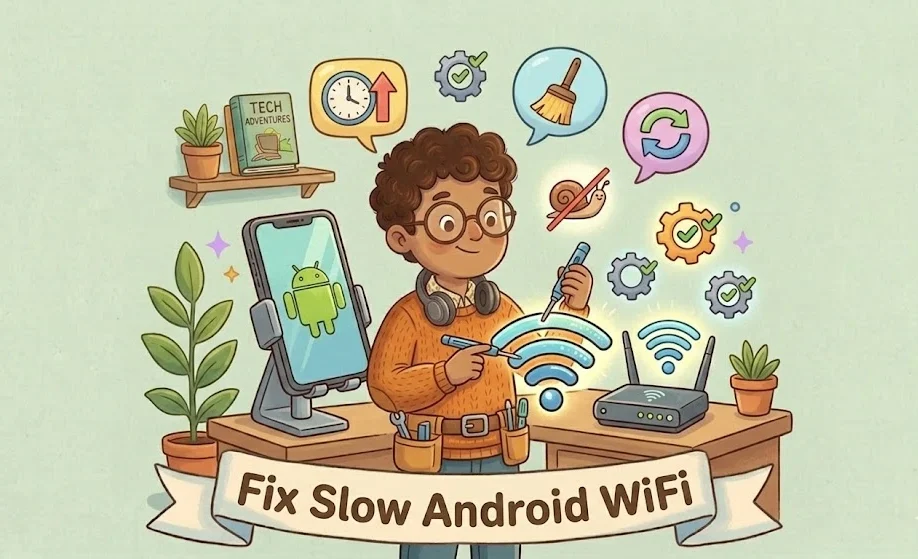
How to fix Slow Wifi on Android ? Slow WiFi on an Android phone can make browsing, streaming, gaming, and downloading frustrating. In many cases, the problem is caused by weak signal strength, network congestion, outdated settings, or apps running in the background.
The good news is that you can usually fix slow WiFi on Android in just a few minutes using simple troubleshooting steps.
In this guide, you’ll learn several effective methods to improve your Android WiFi speed and connection stability.
Table Of Contents
Quick Answer for How to Fix Slow WiFi on Android
Slow WiFi on Android is commonly caused by weak router signals, outdated network settings, background apps, or temporary software glitches. Restarting your router, reconnecting to WiFi, and resetting network settings often solve the issue quickly.
Step 1: Restart Your Android Phone
Temporary glitches can affect your phone’s network performance.
How to restart Android:
- Press and hold the power button
- Tap Restart
- Wait for the phone to reboot
- Reconnect to your WiFi network
After restarting, test your internet speed again.
Step 2: Restart Your WiFi Router
Sometimes the issue comes from the router instead of your phone.
To restart your router:
- Unplug the router from power
- Wait 30 seconds
- Plug it back in
- Wait until the internet lights stabilize
This refreshes your network connection and can improve speed immediately.
Step 3: Move Closer to the Router
Weak WiFi signals reduce internet speed.
Walls, furniture, and electronic devices can interfere with wireless signals.
Tips:
- Stay closer to the router
- Avoid thick walls
- Keep away from microwaves and Bluetooth devices
- Place the router in a central location
Step 4: Forget and Reconnect to the WiFi Network
Corrupted network settings can slow down your connection.
Follow these steps:
- Open Settings
- Tap WiFi
- Select your connected network
- Tap Forget
- Reconnect by entering the password again
This creates a fresh connection between your phone and router.
Step 5: Clear Background Apps
Some apps continue using internet data in the background.
Streaming apps, cloud backups, and downloads can reduce WiFi speed.
To close background apps:
- Open recent apps
- Swipe away unused apps
- Disable unnecessary downloads or syncing
Step 6: Disable VPN Services
VPN apps can slow your internet connection depending on the server location.
To disable VPN:
- Open Settings
- Go to Network & Internet
- Tap VPN
- Disconnect any active VPN service
Now check if your WiFi speed improves.
Step 7: Reset Network Settings
If nothing works, resetting network settings can fix deeper connection problems.
Important:
This removes saved WiFi networks and Bluetooth pairings.
Steps:
- Open Settings
- Tap System
- Select Reset Options
- Tap Reset WiFi, Mobile & Bluetooth
- Confirm the reset
Reconnect to your WiFi network afterward.
Step 8: Update Android Software
Outdated software can cause network performance issues.
To check for updates:
- Open Settings
- Tap Software Update
- Install available updates
System updates often include bug fixes and network improvements.
Additional Tips to Improve Android WiFi Speed
- Use the 5GHz WiFi band if available
- Limit the number of connected devices
- Update your router firmware
- Avoid downloading large files while streaming
- Restart your router regularly
FAQs : How to Fix Slow WiFi on Android
Why is my Android WiFi slow but other devices work fine?
This may happen because of corrupted network settings, background apps, or software issues on your Android phone.
Does resetting network settings delete files?
No. It only removes saved WiFi networks, Bluetooth devices, and mobile network settings.
Can apps slow down WiFi on Android?
Yes. Apps running in the background can consume bandwidth and reduce internet speed.
How do I know if my router is causing the problem?
Test the WiFi speed on another device. If all devices are slow, the router or internet provider is likely the issue.
Final Thoughts
Slow WiFi on Android is usually easy to fix with a few simple troubleshooting steps. Restarting your router, reconnecting to the network, and resetting network settings are some of the most effective solutions.
If the issue continues, your router placement, internet provider, or Android software may need further attention.
for more tech fixes , visit this directory
Read also : How to Reset iPhone Without Password: Easy and Safe Methods