A laptop that suddenly refuses to start can feel like a nightmare. Whether you use your computer for work, school, gaming, or daily browsing, startup problems can stop everything in its tracks. The good news is that many issues have simple solutions you can try at home.
If you’re searching for how to fix a laptop that won’t turn on, this detailed guide walks you through the most effective troubleshooting methods step by step. From checking the charger to diagnosing hardware failures, you’ll learn practical ways to get your device running again.
Table of Contents
Understanding Why a Laptop Won’t Turn On
Before fixing the issue, it’s important to understand what might be causing it. A laptop may fail to power on for several reasons, including:
- Dead battery
- Faulty charger
- Damaged power button
- RAM failure
- Overheating
- Corrupted operating system
- Motherboard issues
- Display problems
Sometimes the solution is surprisingly simple. Other times, the issue may require professional repair. Either way, systematic troubleshooting helps narrow down the cause.
Common Signs of Laptop Power Failure
Different symptoms point to different problems. Here are common warning signs:
| Symptom | Possible Cause |
|---|---|
| No lights or sound | Dead battery or charger |
| Keyboard lights blink | RAM or motherboard issue |
| Fan spins but screen stays black | Display failure |
| Laptop turns on then shuts off | Overheating |
| Clicking sounds | Hard drive problem |
| Power light flashes | BIOS or battery issue |
Recognizing these signs can save time and frustration.
Safety Tips Before Troubleshooting
Before opening or testing your laptop:
- Unplug the charger.
- Remove external accessories.
- Work on a flat surface.
- Avoid static electricity.
- Never force components into place.
If you smell burning or see smoke, stop immediately and seek professional help.
Check the Power Source First
Many people jump straight into complicated repairs when the real problem is the power supply. Start with the basics.
Test the Wall Outlet
Sometimes the electrical outlet itself is faulty.
Try these steps:
- Plug another device into the same outlet.
- Test a different outlet.
- Avoid overloaded extension cords.
If another device also fails to power on, the outlet may be the culprit.
Inspect the Charger and Cable
A damaged charger is one of the most common startup issues.
Look for:
- Frayed wires
- Bent connectors
- Burn marks
- Loose charging tips
Also check whether the charging light appears when plugged in.
If possible, test another compatible charger. If the laptop starts normally, you’ve found the problem.
For official troubleshooting guidance, visit Microsoft Support.
Perform a Hard Reset
A hard reset can clear temporary electrical glitches.
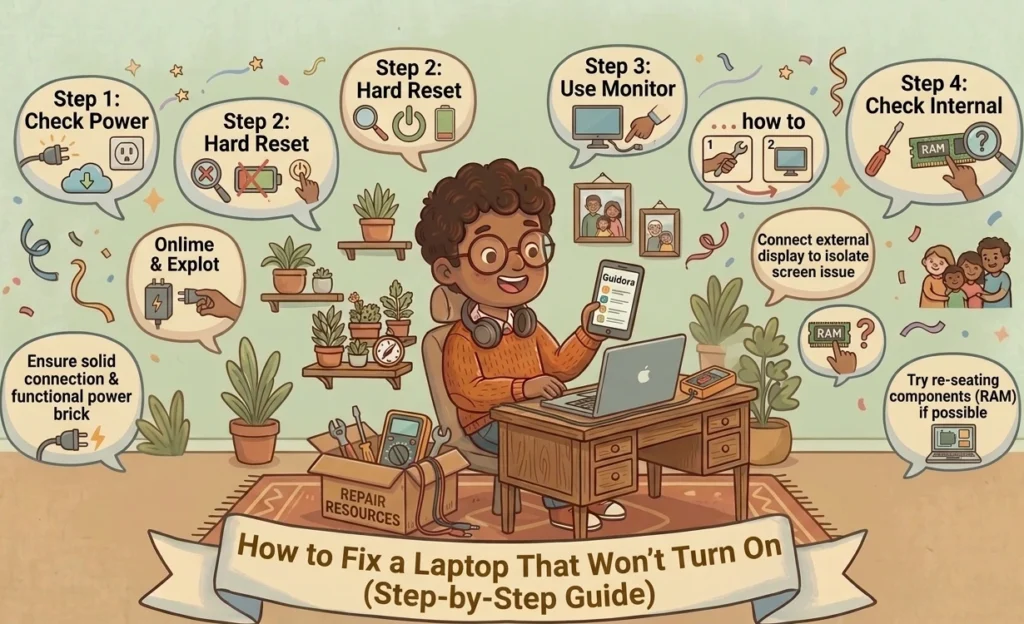
Follow these steps:
- Turn off the laptop completely.
- Disconnect the charger.
- Remove the battery if removable.
- Hold the power button for 20–30 seconds.
- Reconnect power and try turning it on.
This simple method often fixes startup issues caused by residual electrical charge.
Remove External Devices
External accessories sometimes interfere with startup.
Disconnect all peripherals, including:
- USB drives
- Printers
- External monitors
- Mouse and keyboard
- SD cards
After removing everything, restart the laptop.
If the laptop boots normally, reconnect devices one at a time to identify the faulty accessory.
Check the Laptop Battery
Battery failure is another major reason laptops stop turning on.
Symptoms of a Dead Battery
You may notice:
- Battery not charging
- Flashing power light
- Laptop works only when plugged in
- Sudden shutdowns
Older batteries naturally lose capacity over time.
How to Test Without the Battery
If your laptop has a removable battery:
- Remove the battery.
- Plug the charger directly into the laptop.
- Attempt to power it on.
If it works, the battery likely needs replacement.
Modern laptops often have internal batteries. In that case, consult your manufacturer’s manual before opening the device.
Inspect the Screen and Display
Sometimes the laptop is running, but the screen remains black.
Signs the laptop is actually on:
- Fan noise
- Keyboard backlight
- Power indicator lights
- Startup sounds
Try increasing brightness using keyboard shortcuts.
You can also connect an external monitor using HDMI or VGA. If the external display works, the laptop screen may be damaged.
Listen for Sounds and Lights
Your laptop gives clues during startup.
Pay attention to:
| Signal | Meaning |
|---|---|
| Beeping sounds | RAM issue |
| Flashing caps lock light | Hardware failure |
| Continuous fan spinning | Overheating |
| Clicking noises | Hard drive failure |
Laptop manufacturers use different beep codes, so check your brand’s documentation for details.
Boot Into Safe Mode
If the laptop powers on but Windows won’t load properly, Safe Mode may help.
To enter Safe Mode:
- Power on the laptop.
- Interrupt startup three times.
- Select Advanced Startup Options.
- Choose Safe Mode.
Safe Mode loads only essential drivers and services.
Once inside, you can:
- Remove problematic software
- Update drivers
- Run antivirus scans
- Restore the system
This method is extremely useful when software corruption prevents normal startup.
Check RAM Problems
Faulty RAM often causes black screens or boot loops.
Symptoms include:
- Repeated restarts
- Beep codes
- Blank display
- Freezing during startup
To test RAM:
- Power off the laptop.
- Open the RAM compartment.
- Remove RAM sticks carefully.
- Clean contacts gently.
- Reinsert one stick at a time.
If one RAM module prevents startup, it may be defective.
Test the Hard Drive or SSD
Storage failure can stop the operating system from loading.
Signs of drive failure include:
- Clicking noises
- Extremely slow startup
- “Operating System Not Found” message
- Blue screen errors
You can test the drive through BIOS diagnostics if available.
Most laptop brands include built-in hardware tests accessible during startup.
Overheating and Internal Dust Issues
Dust buildup blocks airflow and causes overheating.
When a laptop overheats, it may:
- Shut down automatically
- Refuse to start
- Spin fans loudly
- Become extremely hot
Cleaning tips:
- Use compressed air
- Clean air vents
- Keep the laptop on hard surfaces
- Avoid blocking cooling fans
Regular cleaning improves performance and extends lifespan.
BIOS or Firmware Problems
The BIOS controls hardware communication during startup.
A corrupted BIOS may cause:
- Blank screen
- Boot loops
- Hardware detection failures
To access BIOS:
- Press keys like F2, DEL, ESC, or F10 during startup.
Inside BIOS, check whether:
- Hard drive is detected
- RAM is recognized
- Boot order is correct
Some manufacturers provide BIOS recovery tools on their official websites.
Malware or Software Corruption
Viruses and corrupted system files can prevent startup.
Possible signs include:
- Blue screens
- Endless loading
- Automatic restarts
- Missing system files
Solutions include:
- Running Startup Repair
- Using System Restore
- Reinstalling Windows
- Scanning with antivirus software
If needed, create a bootable USB installer using another computer.
When to Replace the Charger
Not every charger problem is obvious.
You should replace the charger if:
- The charging cable becomes hot
- The connector feels loose
- Charging stops randomly
- Sparks appear
- The charger smells burnt
Always use compatible chargers recommended by the manufacturer.
Cheap replacements can damage your laptop further.
When to Seek Professional Repair
Some issues require expert assistance.
Seek professional help if:
- The motherboard is damaged
- Liquid spilled inside
- The laptop overheats constantly
- You hear grinding noises
- The screen is cracked internally
Professional technicians have specialized tools for deeper diagnostics.
While DIY fixes are helpful, attempting advanced motherboard repairs without experience may worsen the damage.
Tips to Prevent Future Startup Problems
Prevention saves money and stress.
Follow these best practices:
Keep Your Laptop Clean
Dust is a silent killer for electronics. Clean vents monthly.
Avoid Cheap Chargers
Low-quality chargers can fry internal circuits.
Update Software Regularly
Operating system and BIOS updates improve stability.
Use Surge Protection
Power surges can damage laptops instantly.
Don’t Block Airflow
Avoid using laptops on beds or pillows.
Monitor Battery Health
Replace aging batteries before they fail completely.
Frequently Asked Questions (FAQs)
Why is my laptop not turning on even when plugged in?
The charger, battery, motherboard, or power jack may be faulty. Start by testing another charger and outlet.
Can a dead battery stop a laptop from turning on?
Yes. Some laptops won’t power on if the battery is defective, even when connected to AC power.
How do I know if my laptop charger is broken?
Signs include no charging light, overheating, frayed cables, or intermittent charging.
Why does my laptop screen stay black but the lights are on?
This often indicates a display issue, RAM failure, or graphics problem.
Can overheating permanently damage a laptop?
Yes. Long-term overheating can damage the motherboard, CPU, and battery.
Should I repair or replace my laptop?
If repair costs exceed half the value of the laptop, replacement may be more economical.
What causes laptops to suddenly stop working?
Common causes include power failure, overheating, corrupted software, hardware damage, or worn-out batteries.
Conclusion
Learning can save you time, money, and frustration. In many cases, simple troubleshooting steps like checking the charger, performing a hard reset, or testing the battery can quickly solve the problem.
However, if the issue involves the motherboard, severe overheating, or internal hardware failure, professional repair may be the safest choice.
By following the preventive tips in this guide, you can also reduce the chances of future startup problems and keep your laptop running smoothly for years to come.
For more Content about Tech Fixes , Visit this Directory.
Read also :