How to Install Printer on Mac ? Learning how to install a printer on Mac can save time and frustration. Thankfully, modern macOS systems make the setup process much easier than before. Whether you use a wireless printer or a USB device, adding a printer takes only a few minutes.
Many users search for terms like “how to add printer to Mac,” “mac os x add printer,” or “how to add printer to laptop.” Fortunately, the process is simple once you understand the basics.
This complete guide explains every step clearly. Moreover, it covers wireless printing, USB connections, troubleshooting, and advanced setup options.
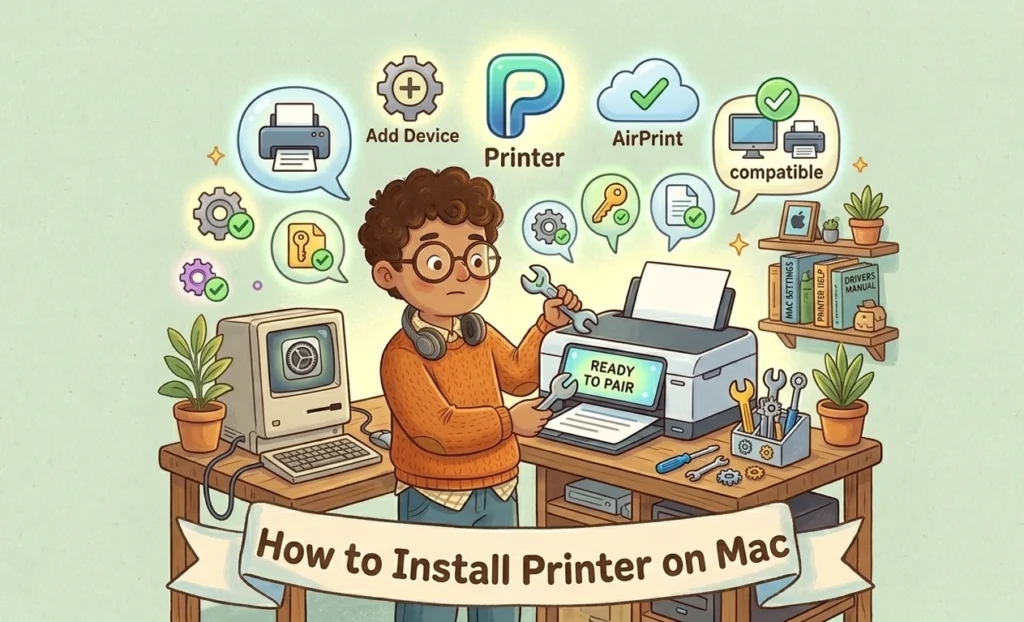
Table of Contents
Why Installing a Printer on Mac Is Easy Today
Apple designed macOS to work smoothly with most modern printers. Many printers now support AirPrint, which allows quick installation without downloading extra software.
Additionally, macOS automatically detects nearby printers connected through Wi-Fi or USB. As a result, users spend less time configuring settings manually.
Today, most printer brands support Mac devices, including:
- HP
- Canon
- Epson
- Brother Industries
Because of improved compatibility, even beginners can install printers confidently.
Things to Prepare Before Adding a Printer
Before starting, prepare a few important things. Proper preparation helps avoid setup problems later.
Check Printer Compatibility
First, confirm your printer supports macOS. Most modern printers work perfectly. However, older devices may require special drivers.
Visit your printer manufacturer’s website to verify compatibility.
Helpful official support pages include:
Always download drivers from official sources only.
Connect to Wi-Fi Network
Wireless printers must connect to the same Wi-Fi network as your Mac. Otherwise, the printer may not appear during setup.
To check:
- Open printer settings
- Connect printer to Wi-Fi
- Confirm network name matches your Mac
Stable internet improves installation speed significantly.
Update macOS
Older macOS versions sometimes create compatibility problems. Therefore, installing updates is always a smart move.
To update macOS:
- Open System Settings
- Click General
- Select Software Update
- Install available updates
Updated systems recognize printers more efficiently.
How to Add Printer to Mac Automatically
Most users prefer automatic installation because it’s quick and reliable.
Using System Settings
Follow these steps carefully:
- Turn on the printer
- Connect it to Wi-Fi or USB
- Open System Settings
- Click “Printers & Scanners”
- Select “Add Printer”
Your Mac will scan for nearby printers automatically.
Once the printer appears:
- Click the printer name
- Press “Add”
- Wait for installation
That’s it. Your printer should now work immediately.
Installing AirPrint Printers
AirPrint technology removes the need for extra drivers. Many modern printers support this feature.
Benefits of AirPrint include:
- Fast setup
- Wireless printing
- Automatic driver management
- Better macOS integration
Apple’s official AirPrint information is available here:
AirPrint works especially well for home users.
How to Add Printer to Laptop Using USB
Although wireless printing is popular, USB connections remain reliable and fast.
Connecting Printer with Cable
To connect via USB:
- Plug the USB cable into your Mac
- Turn on the printer
- Wait for macOS detection
Usually, the system installs drivers automatically.
If the printer doesn’t appear:
- Restart your Mac
- Try another USB port
- Replace the cable
Simple fixes often solve connection problems quickly.
Installing Printer Drivers
Sometimes macOS requests additional software.
When this happens:
- Download official drivers
- Open installer package
- Follow on-screen instructions
- Restart your Mac
After restarting, reconnect the printer.
Avoid unofficial driver websites because they may contain harmful software.
Mac OS X Add Printer Manually
Automatic setup occasionally fails. In that case, manual configuration becomes necessary.
Add Printer by IP Address
Network printers often support IP-based setup.
To add a printer manually:
- Open Printers & Scanners
- Click Add Printer
- Select the IP tab
- Enter printer IP address
- Choose protocol
- Click Add
You can find the printer IP in printer network settings.
This method works especially well in offices.
Configure Printer Settings
After installation, customize settings based on your needs.
Important settings include:
| Setting | Purpose |
|---|---|
| Paper Size | Adjust page format |
| Print Quality | Improve print clarity |
| Duplex Printing | Enable double-sided printing |
| Color Options | Control color usage |
Optimized settings improve print results significantly.
How to Add Printer to Computer Wirelessly
Wireless printing offers flexibility and convenience.
Setup Through Wi-Fi
To install a wireless printer:
- Connect printer to Wi-Fi
- Open Mac printer settings
- Search for nearby devices
- Select the printer
- Click Add
Wireless printing eliminates messy cables entirely.
However, signal strength matters greatly. Weak Wi-Fi may interrupt print jobs.
Using Bluetooth Printers
Some compact printers support Bluetooth connections.
To pair Bluetooth printers:
- Enable Bluetooth on Mac
- Turn on printer pairing mode
- Open Bluetooth settings
- Pair devices
- Add printer in Printers & Scanners
Bluetooth works best for small mobile printers.
Common Printer Installation Problems
Even simple installations can occasionally fail. Thankfully, most issues have easy solutions.
Printer Not Showing on Mac
If your printer doesn’t appear:
- Restart printer and Mac
- Check Wi-Fi connection
- Verify printer compatibility
- Update macOS
Additionally, reconnecting the printer often helps.
Printer Offline Error
Offline errors happen frequently with wireless printers.
Try these fixes:
- Open Printers & Scanners
- Remove the printer
- Add it again
- Restart router
Network stability plays a huge role here.
Driver Installation Issues
Incorrect drivers may prevent printing.
To solve this:
- Remove old drivers
- Download latest version
- Install official software only
Outdated drivers commonly cause printing failures.
Best Tips for Smooth Printing on Mac
Good printing habits improve reliability long term.
Keep Drivers Updated
Manufacturers regularly release updates.
Updated drivers provide:
- Better compatibility
- Faster printing
- Bug fixes
- Security improvements
Checking for updates monthly is a smart habit.
Use Quality Paper and Ink
Cheap supplies can reduce print quality significantly.
For best results:
- Use genuine cartridges
- Store paper properly
- Clean printer regularly
Small maintenance steps extend printer lifespan.
Monitor Printer Queue
Large print queues may freeze occasionally.
To manage print jobs:
- Open printer settings
- Check active queue
- Cancel stuck jobs
This simple trick solves many delays instantly.
FAQs About How to Install Printer on Mac
How do I add a printer to my Mac manually?
Open Printers & Scanners, click Add Printer, and use the IP tab to enter the printer address manually.
Why won’t my Mac detect my printer?
Your printer may not share the same Wi-Fi network, or outdated drivers may block detection.
Can I add a wireless printer without drivers?
Yes, AirPrint printers often work without additional software.
How do I connect an old printer to a Mac?
Older printers may require manufacturer drivers and USB connections.
What is AirPrint on Mac?
AirPrint is Apple’s wireless printing technology that allows easy printing without installing drivers.
How do I remove and reinstall a printer on Mac?
Open Printers & Scanners, remove the printer, restart the Mac, and add the printer again.
Conclusion
Learning how to install printer on Mac becomes simple once you understand the correct steps. Whether you use USB, Wi-Fi, AirPrint, or Bluetooth, macOS offers reliable setup tools for every situation.
This guide explained how to install a printer on Mac, how to add printer to laptop, and how to add printer to computer wirelessly. Additionally, it covered troubleshooting methods and performance tips.
By following these steps carefully, you can enjoy fast and reliable printing without technical headaches. Keep your drivers updated, maintain your printer regularly, and use official software whenever possible.
With the right setup, your Mac and printer can work together smoothly for years.
Post-Article Message:
Thank you for reading this complete guide on how to install printer on Mac. Save this article for future reference and share it with anyone needing printer setup help.
for more content about Apps and softwares , visit this directory.
Read also :