How to Reset iPhone Without Password ? Forgetting your iPhone password can feel stressful. However, several effective methods can help you regain access quickly. Whether your screen is locked or disabled, you can still reset your device safely. This guide explains the best ways to reset an iPhone without a password while protecting your data and device security.
Table of Contents
Why You May Need to Reset an iPhone Without a Password
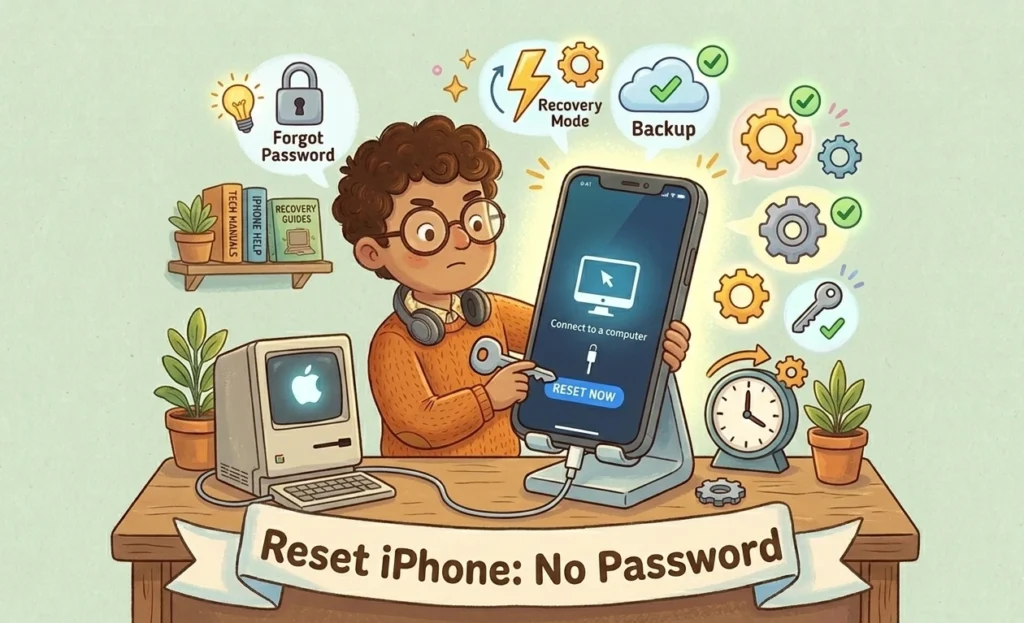
Many users forget their passcodes after changing them. Others buy second-hand devices that remain locked. In some cases, repeated failed attempts disable the iPhone completely. Fortunately, Apple provides secure recovery options for these situations.
Additionally, resetting your iPhone can improve performance and remove unwanted settings. Therefore, knowing the correct reset methods becomes very useful.
How to Reset iPhone Without Password Using Recovery Mode
Recovery Mode is one of the most reliable methods. It works even if your iPhone is disabled.
Steps to Reset iPhone in Recovery Mode
- Turn off your iPhone completely.
- Connect the iPhone to a computer using a USB cable.
- Open Finder on Mac or iTunes on Windows.
- Put the iPhone into Recovery Mode.
The button combination depends on your model:
- iPhone 8 or newer: Press Volume Up, then Volume Down, then hold the Side button.
- iPhone 7 series: Hold the Volume Down and Power buttons together.
- iPhone 6s or earlier: Hold the Home and Power buttons together.
- Keep holding the button until the Recovery Mode screen appears.
- On your computer, select “Restore.”
- Wait for the process to finish.
Afterward, your iPhone will restart as a new device.
Reset iPhone Without Password Using iCloud
This method works if Find My iPhone is enabled. It also requires your Apple ID credentials.
Steps to Erase iPhone Through iCloud
- Visit the iCloud website on another device.
- Sign in with your Apple ID.
- Open “Find iPhone.”
- Select your locked iPhone from the device list.
- Click “Erase iPhone.”
- Confirm the action.
Once completed, your device resets remotely. Then, you can set it up again normally.
Use Finder or iTunes to Restore iPhone
Finder and iTunes provide another simple reset solution. This method is useful when your iPhone still connects to a trusted computer.
How to Restore with Finder or iTunes
- Connect your iPhone to the computer.
- Open Finder or iTunes.
- Select your device.
- Click “Restore iPhone.”
- Confirm the restore process.
The software downloads the latest iOS version automatically. As a result, your iPhone receives a fresh installation.
How to Reset Disabled iPhone Without Password
A disabled iPhone appears after too many incorrect passcode attempts. Thankfully, Recovery Mode can still solve the issue.
However, you must erase the device entirely. Apple uses this security feature to protect personal information. Therefore, always back up your files regularly.
Can You Reset iPhone Without Losing Data?
In most cases, resetting without a password erases all stored data. Still, you can restore your information if a backup exists.
You may recover data from:
- iCloud Backup
- Finder Backup
- iTunes Backup
After resetting the iPhone, choose “Restore Backup” during setup. Consequently, your photos, apps, and settings return quickly.
Common Problems During iPhone Reset
Some users experience errors during the process. Fortunately, most problems have simple fixes.
iPhone Not Entering Recovery Mode
- Use an original Apple cable.
- Update iTunes or macOS.
- Retry the button sequence carefully.
Restore Process Stuck
- Restart the computer.
- Try another USB port.
- Check your internet connection.
Activation Lock Appears
Activation Lock requires the original Apple ID. Therefore, you must know the correct credentials before using the device again.
Best Tips Before Resetting Your iPhone
Preparation helps avoid unnecessary issues. Before resetting, follow these tips:
- Charge the iPhone above 50%.
- Use a stable internet connection.
- Back up important data frequently.
- Keep your Apple ID information ready.
These steps make the reset process smoother and faster.
Is It Safe to Reset iPhone Without Password?
Yes, Apple’s official methods are safe and secure. They protect your privacy while restoring device access. However, avoid unknown third-party tools because they may compromise security.
Additionally, official Apple solutions reduce the risk of software damage. Therefore, using Finder, iTunes, Recovery Mode, or iCloud remains the safest choice.
Final Thoughts on Resetting an iPhone Without Password
Resetting an iPhone without a password is easier than many users expect. Recovery Mode, iCloud, and Finder all offer reliable solutions. Moreover, each method works well for different situations.
Always back up your iPhone regularly to protect your data. That way, even if you forget your password, restoring your information becomes simple and stress-free.
FAQs About How to Reset iPhone Without Password
How do you factory reset an iPhone without the password?
You can factory reset an iPhone without the password by using Recovery Mode, iTunes, Finder, or iCloud. Connect the iPhone to a computer, enter Recovery Mode, and choose the “Restore” option. This process erases the device and installs the latest iOS version.
How to do a factory reset on iPhone when locked?
If your iPhone is locked, use Recovery Mode to reset it. First, turn off the device and connect it to a computer. Then, press the correct button combination for your iPhone model until the Recovery Mode screen appears. Finally, select “Restore” in Finder or iTunes.
How to reset an iPhone if you have forgotten the passcode?
When you forget the passcode, you can reset the iPhone through Recovery Mode or iCloud. However, the reset process removes all stored data unless you have a backup available. After resetting, you can restore your files from iCloud or iTunes backup.
Can I reset my iPhone without Apple ID or passcode?
Yes, you can reset the iPhone without the passcode by using Recovery Mode. However, if Activation Lock is enabled, you still need the original Apple ID and password to activate the device after the reset. Without the Apple ID, the iPhone remains locked for security reasons.
Related : How to Fix Slow WiFi on Android ?