How To install Minecraft Mods ? Minecraft mods can completely transform your gameplay experience. They add new worlds, mobs, tools, weapons, and exciting mechanics. Many players use mods to make the game more creative and enjoyable. Thankfully, learning how to install Minecraft mods is easier than it sounds.
Whether you play casually or build massive worlds, mods can upgrade your adventures instantly. Moreover, modern modding tools simplify the entire process. This guide explains everything step by step so beginners can follow along confidently.
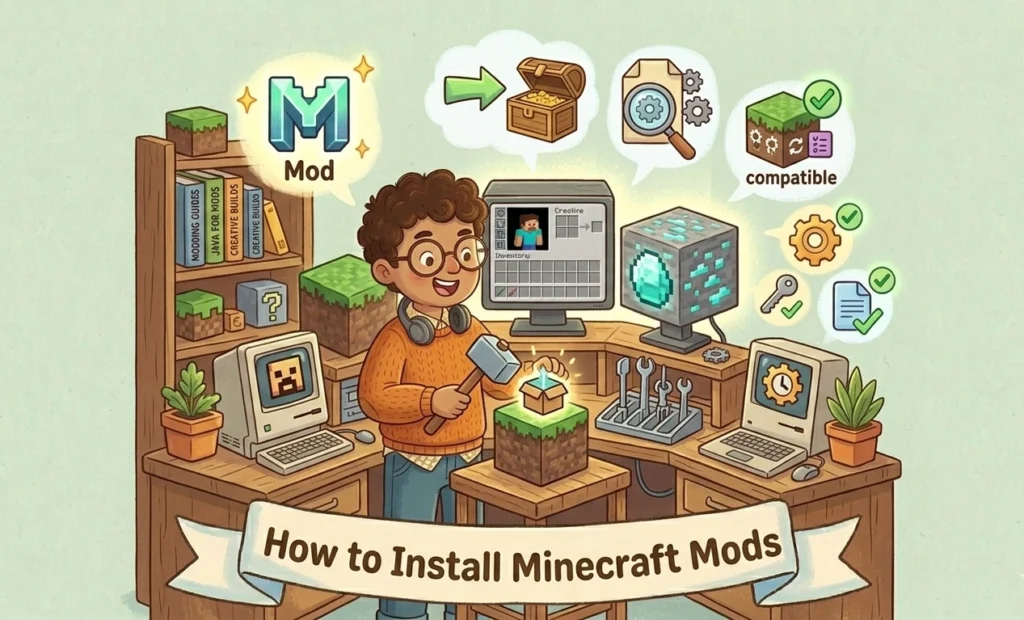
Table of Contents
What Are Minecraft Mods?
Minecraft mods are custom files that change or improve the game. Some mods add realistic graphics, while others introduce magic systems or futuristic technology.
Players create mods using Minecraft’s code. As a result, the community constantly releases fresh content. Mods can improve survival gameplay, automate tasks, or even create entirely new dimensions.
Popular examples include:
- OptiFine for better graphics
- JEI for crafting recipes
- Biomes O’ Plenty for new environments
- Pixelmon for Pokémon gameplay
Because of this variety, there’s something for every type of player.
Why Players Love Minecraft Mods
Mods keep Minecraft exciting for years. Without them, gameplay may eventually feel repetitive. However, mods introduce endless possibilities.
Here are several reasons players install mods:
- Add unique gameplay features
- Improve graphics and performance
- Create multiplayer experiences
- Customize survival mode
- Introduce advanced building tools
Additionally, mods allow players to personalize the game completely. One player may prefer realistic survival. Another may enjoy fantasy adventures. Mods support both styles effortlessly.
Things You Need Before Installing Mods
Before learning how to install Minecraft mods, you should prepare your system properly. A few simple steps can prevent crashes and compatibility issues later.
Check Your Minecraft Version
Every mod works with specific Minecraft versions. Therefore, always confirm your game version first.
To check it:
- Open Minecraft Launcher
- Look at the bottom-left corner
- Note the installed version
Many mods support versions like 1.20.1 or 1.19.4. Installing mismatched versions usually causes errors.
Back Up Your Minecraft Files
Backing up your saves protects your worlds from corruption. Although mods are generally safe, mistakes happen occasionally.
To create a backup:
- Open the Minecraft folder
- Copy the “saves” folder
- Paste it somewhere secure
This simple habit can save hours of work later.
Download Java
Minecraft Java Edition requires Java to run mods properly. If Java is outdated, mods may fail.
You can download Java from the official website:
After installation, restart your computer before continuing.
How to Install Minecraft Forge
Forge is the most popular Minecraft mod loader. It allows mods to work together correctly.
Download Forge Safely
Always use the official Forge website:
Choose the Forge version matching your Minecraft version exactly.
For example:
| Minecraft Version | Recommended Forge Version |
|---|---|
| 1.20.1 | Forge 47.x |
| 1.19.4 | Forge 45.x |
| 1.18.2 | Forge 40.x |
Avoid unofficial websites because they may contain malware.
Install Forge Correctly
After downloading Forge:
- Open the installer file
- Select “Install Client”
- Click OK
- Wait for installation
Once completed, open Minecraft Launcher. You’ll now see a Forge profile available.
Select it before launching the game.
How to Install Fabric for Minecraft Mods
Fabric is another lightweight mod loader. Many modern performance mods use Fabric instead of Forge.
Fabric works especially well with optimization mods like Sodium.
To install Fabric:
- Download the installer
- Open the installer
- Choose your Minecraft version
- Click Install
You can download it here:
Afterward, launch Minecraft using the Fabric profile.
How to Download Minecraft Mods Safely
Downloading mods from trusted websites is extremely important. Unsafe files can damage your computer or steal information.
Best Websites for Minecraft Mods
Reliable websites include:
- CurseForge
- Modrinth
- Planet Minecraft
You can explore safe mods here:
These platforms scan uploads and support trusted creators.
Avoiding Unsafe Downloads
To stay safe:
- Never download suspicious EXE files
- Avoid fake “free premium” mods
- Read reviews before installing
- Use antivirus protection
Additionally, double-check compatibility before downloading.
How to Install Minecraft Mods Manually
Now comes the fun part. After downloading mods, you must place them in the correct folder.
Locate the Mods Folder
Follow these steps:
- Press Windows + R
- Type
%appdata% - Open
.minecraft - Find the
modsfolder
If it doesn’t exist, create one manually.
Add Mods to Minecraft
Next:
- Drag downloaded mod files into the mods folder
- Launch Minecraft with Forge or Fabric
- Open the Mods menu
Your installed mods should now appear.
At this point, you’ve successfully learned how to install Minecraft mods manually.
How to Install Minecraft Mod Packs
Mod packs combine many mods into one package. They save time and improve compatibility.
Popular launchers include:
- CurseForge Launcher
- ATLauncher
- Technic Launcher
To install a mod pack:
- Download a launcher
- Search for a mod pack
- Click Install
- Launch the game
This method is easier for beginners because everything installs automatically.
Common Problems and Fixes
Even experienced players face issues occasionally. Thankfully, most problems are simple to solve.
Mods Not Showing Up
Possible causes include:
- Wrong mod loader
- Incorrect game version
- Mod placed outside the mods folder
Double-check everything carefully.
Game Crashes After Installing Mods
Crashes often happen because of conflicts between mods.
Try these fixes:
- Remove recently added mods
- Update Forge or Fabric
- Allocate more RAM
Additionally, reading crash logs can reveal the exact issue.
Version Compatibility Issues
One outdated mod can break everything. Therefore, always match:
- Minecraft version
- Forge or Fabric version
- Mod version
Consistency matters greatly in modding.
Best Minecraft Mods for Beginners
If you’re new to modding, start with lightweight and stable mods.
Here are beginner-friendly choices:
| Mod | Purpose |
|---|---|
| OptiFine | Better FPS and graphics |
| JEI | Recipe viewer |
| JourneyMap | Real-time map |
| AppleSkin | Food information |
| Mouse Tweaks | Inventory improvements |
These mods improve gameplay without overwhelming new players.
Tips to Improve Minecraft Mod Performance
Large mod collections can slow your game. Fortunately, several tricks improve performance significantly.
Allocate More RAM
Giving Minecraft additional RAM helps reduce lag.
Recommended amounts:
- Small mod packs: 4GB
- Medium packs: 6GB
- Heavy packs: 8GB+
However, don’t allocate all system memory.
Use Optimization Mods
Performance mods can dramatically improve FPS.
Popular choices include:
- Sodium
- Lithium
- FerriteCore
These mods reduce lag while maintaining visual quality.
Lower Graphics Settings
Sometimes simple changes help most.
Reduce:
- Render distance
- Shadow quality
- Particle effects
As a result, gameplay becomes smoother instantly.
FAQs About How to Install Minecraft Mods
Do Minecraft mods work on Bedrock Edition?
Most mods work only on Java Edition. Bedrock uses add-ons instead of traditional mods.
Are Minecraft mods free?
Yes, most Minecraft mods are completely free. Many creators share them publicly on trusted websites.
Can mods damage my Minecraft worlds?
Mods can occasionally corrupt saves. Therefore, always create backups before installing new mods.
Do I need Forge for every mod?
No, some mods require Fabric instead of Forge. Others work independently.
Why does Minecraft crash after installing mods?
Crashes usually happen because of version mismatches or incompatible mods.
Can I use multiple mods together?
Yes, but compatibility matters. Many players combine dozens of mods successfully.
Conclusion
Learning how to install Minecraft mods opens the door to endless creativity. Mods improve graphics, gameplay, exploration, and survival mechanics. Additionally, modern tools make installation much easier than before.
By following this guide, beginners can safely install mods without frustration. Start with trusted websites, use the correct versions, and back up your worlds regularly. Soon, your Minecraft experience will feel brand new.
Whether you enjoy adventure, technology, or fantasy gameplay, mods can completely transform your world. So go ahead and explore the massive Minecraft modding community today.
For more Content about Softwares And Apps , visit this directory